

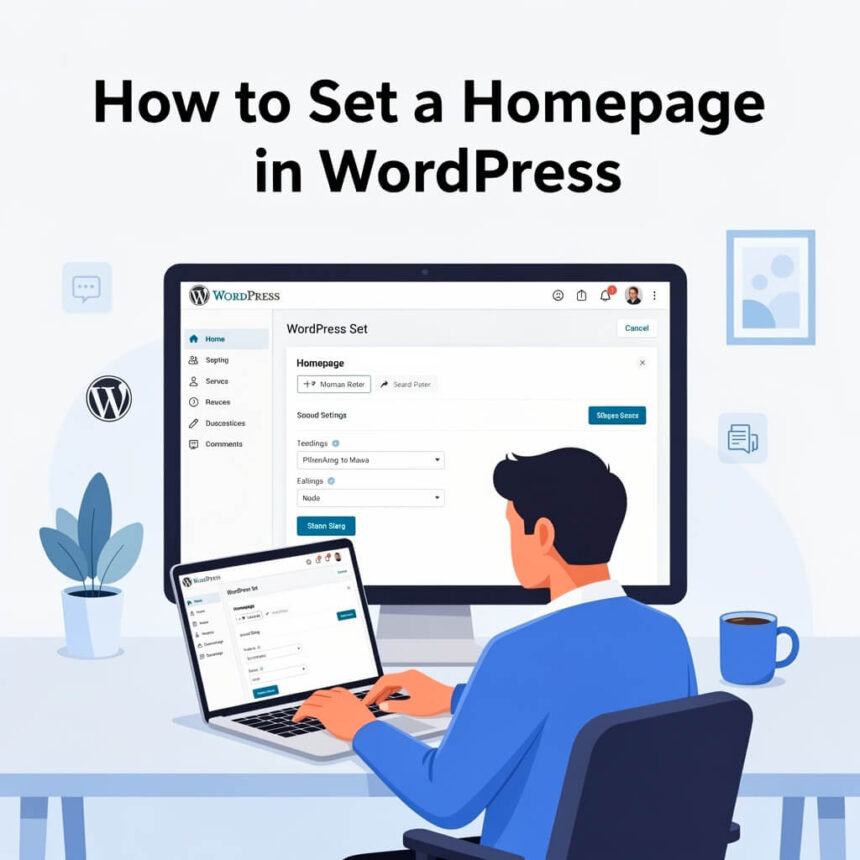

When you first install WordPress, your site usually shows your latest blog posts on the front page. This is great for bloggers, but many people want a professional, custom homepage that welcomes visitors and explains what the site is about.
Setting a custom homepage is one of the first steps to making your website look unique. In this guide, we will show you exactly how to do it in just a few minutes.
Step 1: Create Your Pages
Before you can set a homepage, you need to have the pages ready. You will typically need two pages:
- A Homepage: This is the main page people see when they type in your web address.
- A Blog Page: If you still want to write articles, you need a separate page where those posts will live.
To create these, go to your WordPress dashboard. Click on Pages and then Add New. Name one “Home” and the other “Blog” (or “News”). You don’t need to add much content yet. Just click Publish for both.
Step 2: Change Your Reading Settings
Once your pages are published, you need to tell WordPress how to use them.
- Look at the left-hand menu in your dashboard.
- Hover over Settings and click on Reading.
- At the top of the page, you will see a section called Your homepage displays.
- By default, it is set to “Your latest posts.” Change this by selecting the option that says A static page.
Step 3: Assign Your Pages
After you select “A static page,” two dropdown menus will appear.
- Homepage: Click the dropdown and select the “Home” page you created earlier.
- Posts page: Click the dropdown and select the “Blog” page you created.
Scroll to the bottom of the screen and click the Save Changes button.
Step 4: Verify the Change
Now, go to your website and refresh the page. You should see your new “Home” page instead of a list of blog posts. If you want to see your articles, you can navigate to the “Blog” page through your site menu.
Why You Should Use a Static Homepage
A static homepage gives you more control over your brand. Instead of just showing a list of dates and titles, you can use this space to:
- Add a big, beautiful welcome image.
- List your services or products clearly.
- Include testimonials from happy customers.
- Direct people to your most important content.
Troubleshooting Tips
If your new homepage doesn’t look right, here are two things to check:
- Theme Settings: Some modern themes have their own settings. Check under Appearance, then Customize to see if there is a “Homepage Settings” tab there. It works the same way as the settings we just changed.
- Page Builders: If you use a tool like Elementor or Beaver Builder, make sure you are editing the specific page you assigned as the homepage.
Setting a homepage is a simple change that makes a huge difference in how visitors see your site. It moves your website from looking like a basic journal to a professional online destination.



✅