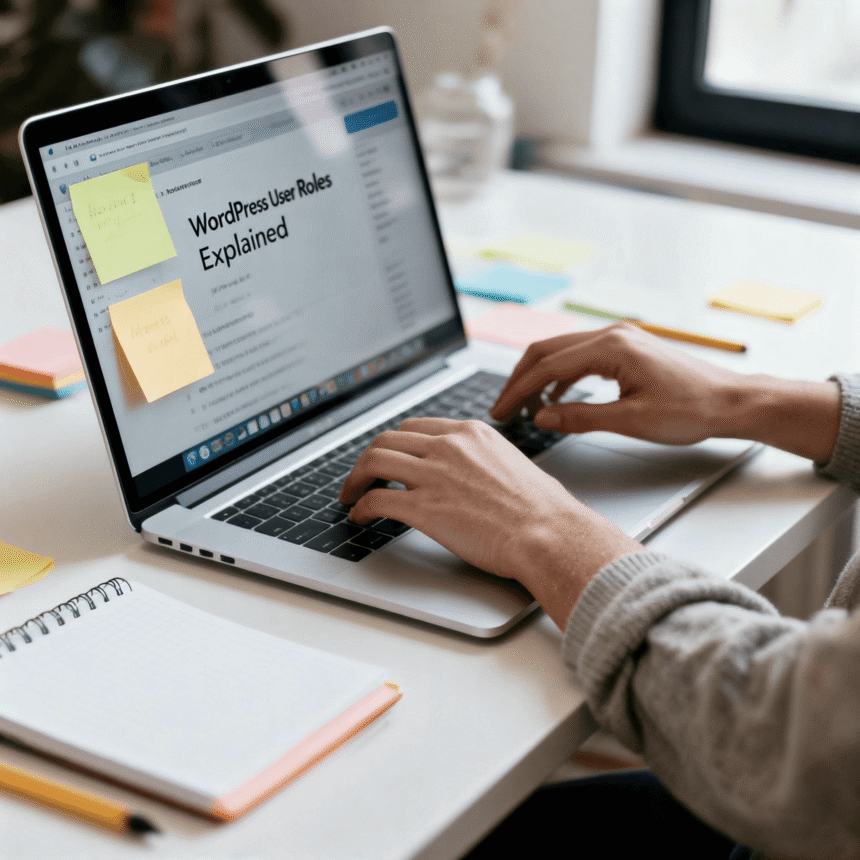

Managing a WordPress website is rarely a one person job. As your site grows, you might need to hire writers, editors, or technical assistants. This is where WordPress user roles come in. They allow you to give people access to your site without giving them the keys to the entire kingdom.
Understanding these roles is essential for keeping your website secure. If you give everyone full control, someone might accidentally delete a page or change a setting that breaks your site.
Why User Roles Matter
Think of your WordPress site like a physical office building.
- The Owner has keys to every room, including the safe.
- The Security Guard can enter most rooms but can’t change the locks.
- The Cleaning Staff can enter specific areas at specific times.
- The Visitor can only stay in the lobby.
By assigning the correct role, you ensure that people can do their jobs without seeing sensitive information or having the power to make major changes.
The 5 Standard WordPress User Roles
Most WordPress installations come with five default roles. Each role has a specific set of permissions called “capabilities.”
1. Administrator
The Administrator is the most powerful role. When you first create your WordPress site, your account is automatically an Administrator.
- What they can do: Everything. They can install plugins, change themes, delete content, and even delete other users.
- Best for: The site owner or a highly trusted lead developer.
- Warning: Be very careful about who you assign this role to. A mistake by an Admin can take your entire site offline.
2. Editor
An Editor is responsible for managing the content of the website. They don’t handle the technical side, like updates or plugins, but they have full control over the “written” part of the site.
- What they can do: They can write, edit, publish, and delete any posts or pages, even those written by other users. They can also moderate comments and manage categories.
- Best for: A content manager or a managing editor who oversees a team of writers.
3. Author
Authors have much less power than Editors. They are only responsible for their own work.
- What they can do: They can write, edit, and publish their own posts. They can also upload files to the media library.
- What they cannot do: They cannot edit anyone else’s posts, and they cannot create or edit “Pages” (like your About Us or Contact page).
- Best for: Regular staff writers who you trust to publish their own work without a final review.
4. Contributor
The Contributor role is a safer version of the Author role. It is perfect for guest bloggers or new writers.
- What they can do: They can write and edit their own posts, but they cannot publish them.
- What they cannot do: They cannot upload images or files. They also cannot see their post live until an Administrator or Editor approves it.
- Best for: One time guest posters or freelancers.
5. Subscriber
The Subscriber is the most limited role. Most people who register on your site will fall into this category.
- What they can do: They can log in to your site and update their own user profile (like changing their password or avatar).
- What they cannot do: They cannot write posts, view comments before they are approved, or change any site settings.
- Best for: Sites that require users to log in to read premium content or leave comments.
Comparison Table of Roles
| Role | Write Posts | Publish Posts | Edit Others’ Posts | Manage Plugins/Themes |
| Administrator | Yes | Yes | Yes | Yes |
| Editor | Yes | Yes | Yes | No |
| Author | Yes | Yes | No | No |
| Contributor | Yes | No | No | No |
| Subscriber | No | No | No | No |
Tips for Managing Users Safely
To keep your WordPress site running smoothly, follow these simple rules:
The Principle of Least Privilege
Always give a user the minimum amount of access they need to do their job. If someone is just writing a guest post, don’t make them an Editor. Start them as a Contributor. You can always increase their permissions later if needed.
Keep Your Admin List Short
Try to have only one or two Administrators. If multiple people need to manage content, make them Editors instead. This reduces the risk of someone accidentally changing a critical site setting.
Use a Plugin for Custom Roles
If the standard five roles don’t fit your needs, you can use a plugin like “User Role Editor.” This allows you to create custom roles or change the permissions of existing ones. For example, you could create a role that can upload images but cannot publish posts.
Final Thoughts
Understanding WordPress user roles is one of the best ways to protect your website. It keeps your workflow organized and ensures that your content is managed by the right people. By taking a few minutes to assign the correct roles today, you save yourself from potential headaches and security risks in the future.