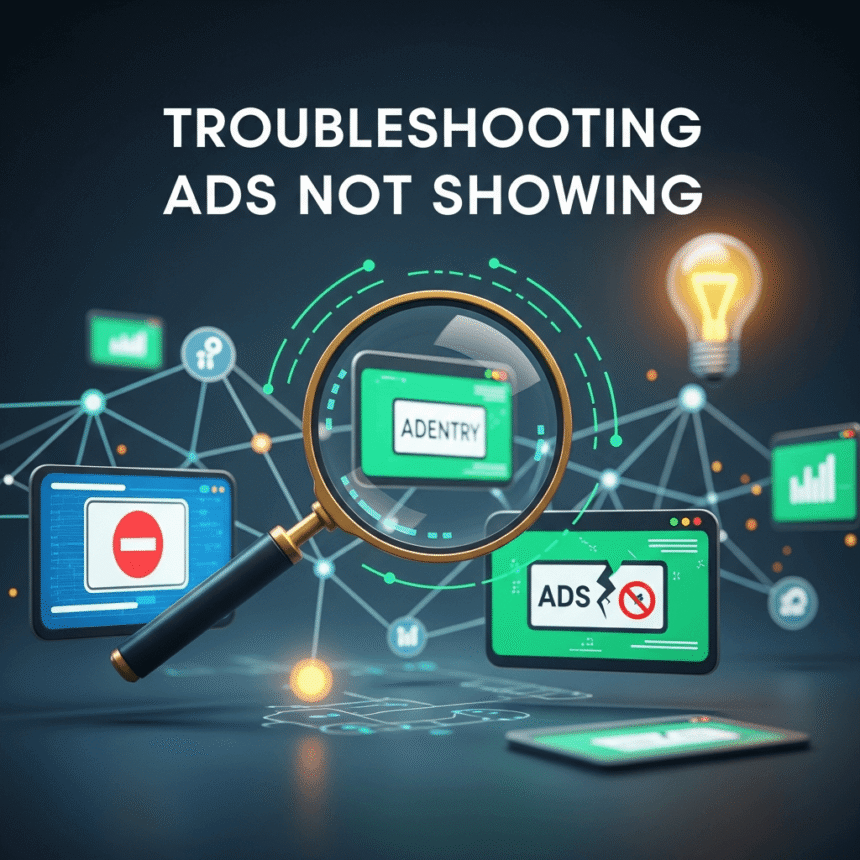

It can be incredibly frustrating when you have set everything up correctly, yet your advertisements are simply not appearing on your website. This issue can lead to lost revenue and a lot of wasted time. However, most of the time, the solution is simpler than you might think.
Here is a guide to help you find out why your ads are missing and how to fix the problem.
1. Check Your Implementation Code
The most common reason for ads not showing is a mistake in the code. If the script is missing even one character or if it was pasted into the wrong part of your website’s HTML, the ad server will not be able to recognize the request.
Make sure the code is complete. Copy the code directly from your provider again and replace the old version.
Check the placement. Ensure the code is placed within the correct tags (usually the <head> or <body> tags) as specified by your provider.
2. Verify Your Account Status
Sometimes the issue isn’t on your website but within your account dashboard. Login to your ad provider and look for any notifications or alerts.
Policy violations: If your content accidentally breaks a rule, your ads might be paused.
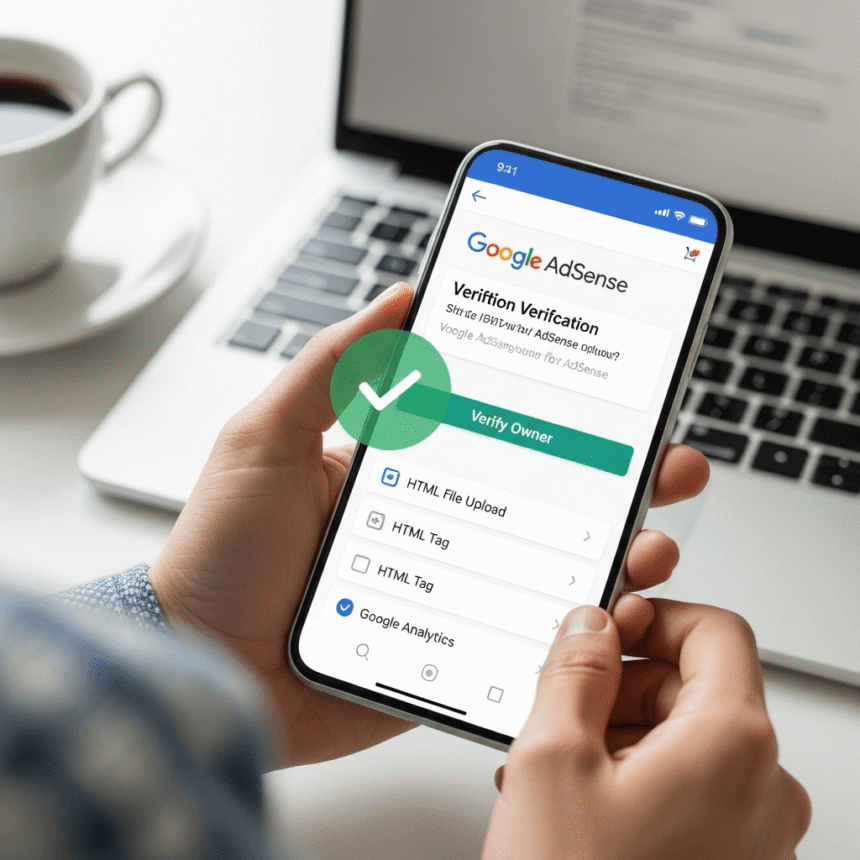
Identity or payment verification: Ensure you have completed all the necessary paperwork and verification steps required by the platform.
New accounts: If you just signed up, it can take anywhere from 24 hours to a few days for your account to be fully reviewed and for ads to start appearing.
3. Review Your Site Content
Ad platforms use automated bots to “crawl” your site and determine what ads to show. If these bots cannot read your site, no ads will appear.
Robots.txt file: Check if your robots.txt file is accidentally blocking ad crawlers from visiting your pages.
Login-protected content: If your ads are behind a “members only” wall or a password, the ad crawler cannot see the content to match it with an advertisement.
Empty pages: If a page has very little text or only images, the system may struggle to find a relevant ad to display.
4. Browser and Extension Issues
Sometimes the ads are actually working fine, but you just can’t see them on your own screen.
Ad Blockers: This is the most obvious culprit. Disable any ad-blocking extensions in your browser to see if the ads reappear.
Browser Cache: Your browser might be showing you an old, saved version of your site. Clear your cache and cookies, then refresh the page.
VPNs: Some Virtual Private Networks (VPNs) have built-in filters that block advertising scripts.
5. Check for Technical Conflicts
If you use a Content Management System (CMS) like WordPress, your plugins might be fighting each other.
Caching Plugins: Plugins designed to speed up your site can sometimes “break” JavaScript, which is what ads rely on to load.
Security Plugins: Some high-security firewalls might flag ad scripts as suspicious and block them from running.
Summary Checklist
To get your ads back up and running, follow these steps in order:
Re-copy and paste your ad code to ensure it is perfect.
Check your provider’s dashboard for any “Action Required” alerts.
Turn off your own ad blocker and clear your browser cache.
Wait at least 48 hours if your account or site is brand new.
By methodically checking these areas, you should be able to identify the bottleneck and get your site back to earning as expected.