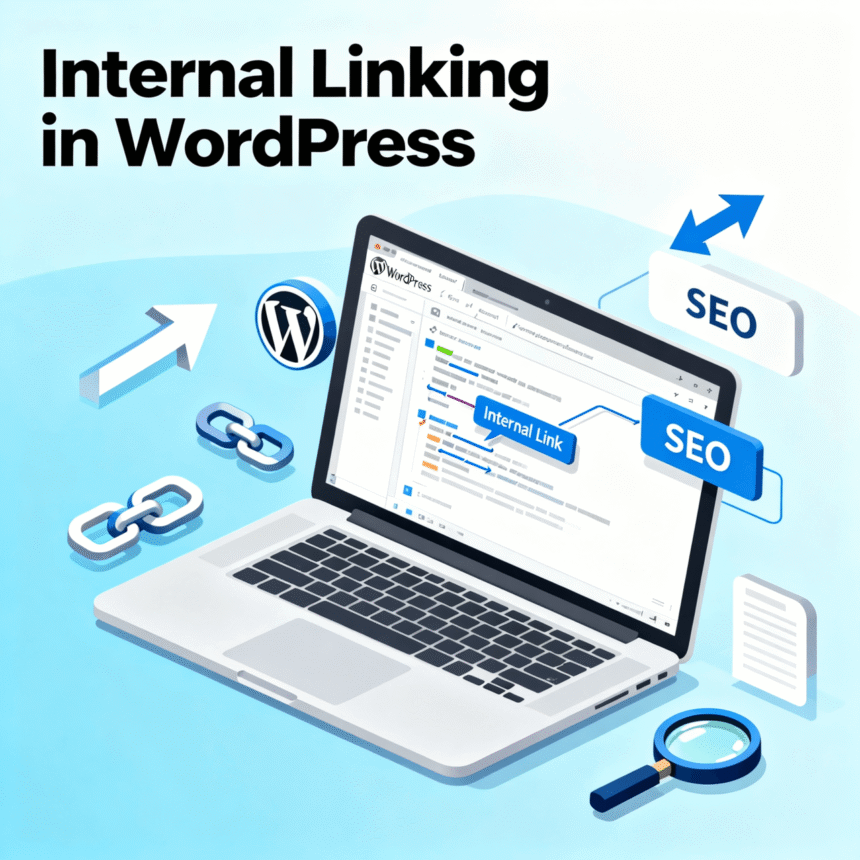

Internal linking is one of the most powerful tools in your SEO toolkit, yet many website owners overlook it. If you want to keep visitors on your site longer and help search engines understand your content, mastering this technique is essential.
In this guide, we will break down what internal linking is, why it matters for your WordPress site, and how you can do it effectively.
What is an Internal Link?
An internal link is simply a hyperlink that points from one page on your website to another page on the same website. For example, if you write a post about healthy eating and link to your other post about easy salad recipes, that is an internal link.
This is different from an external link, which points to a completely different website.
Why Internal Linking is Crucial for Your Site
Internal linking serves three main purposes that help your website grow.
1. It Improves the User Experience
When you provide links to related content, you make it easier for your readers to find more information. If a visitor finds your content helpful, they are likely to click on your links to learn more. This keeps them on your site for a longer time.
2. It Helps Search Engines Crawl Your Site
Search engines like Google use “bots” to find and index content. These bots follow links. If a page on your site has no internal links pointing to it, the bots might never find it. A solid linking structure ensures every page is discovered.
3. It Passes Link Authority
Think of your website’s home page as a reservoir of authority. When you link from your home page to a blog post, you are sharing some of that “power” with the post. This can help your individual pages rank higher in search results.
How to Create Internal Links in WordPress
WordPress makes it very easy to add links without needing to know any code.
- The Manual Method: Highlight the text you want to turn into a link. Click the “Link” icon in the toolbar or press
Ctrl + K. Search for the title of the post you want to link to and select it. - The Sidebar or Footer: You can add “Recent Posts” or “Popular Posts” widgets to your sidebar. These create automatic internal links across your entire site.
Best Practices for Successful Internal Linking
To get the most out of your links, follow these simple rules.
Use Descriptive Anchor Text
Anchor text is the clickable word or phrase in a link. Avoid using generic phrases like “click here” or “read more.” Instead, use keywords that describe the target page. For example, use “guide to vegan recipes” instead of “this link.”
Link to Relevant Content
Only link to pages that provide extra value to the reader. If you are writing about car repairs, linking to a post about baking cookies will only confuse your audience and the search engines.
Keep the Link Count Natural
Don’t turn your blog post into a wall of blue links. A good rule of thumb is to include 3 to 5 internal links for every 1,000 words. If you add too many, it becomes distracting and looks like spam.
Update Old Posts
When you publish a new article, go back to your older, popular posts and add a link to the new one. This gives your new content an immediate boost in visibility.
Summary of the Internal Linking Process
| Action | Why it helps |
| Use keywords in anchor text | Helps search engines understand the topic |
| Link from new to old posts | Keeps old content alive and relevant |
| Link from old to new posts | Helps new content get indexed faster |
| Check for broken links | Ensures a smooth experience for visitors |
By taking a few extra minutes to add internal links to every post you write, you are building a stronger foundation for your WordPress site. It is a simple habit that leads to better rankings and happier readers.