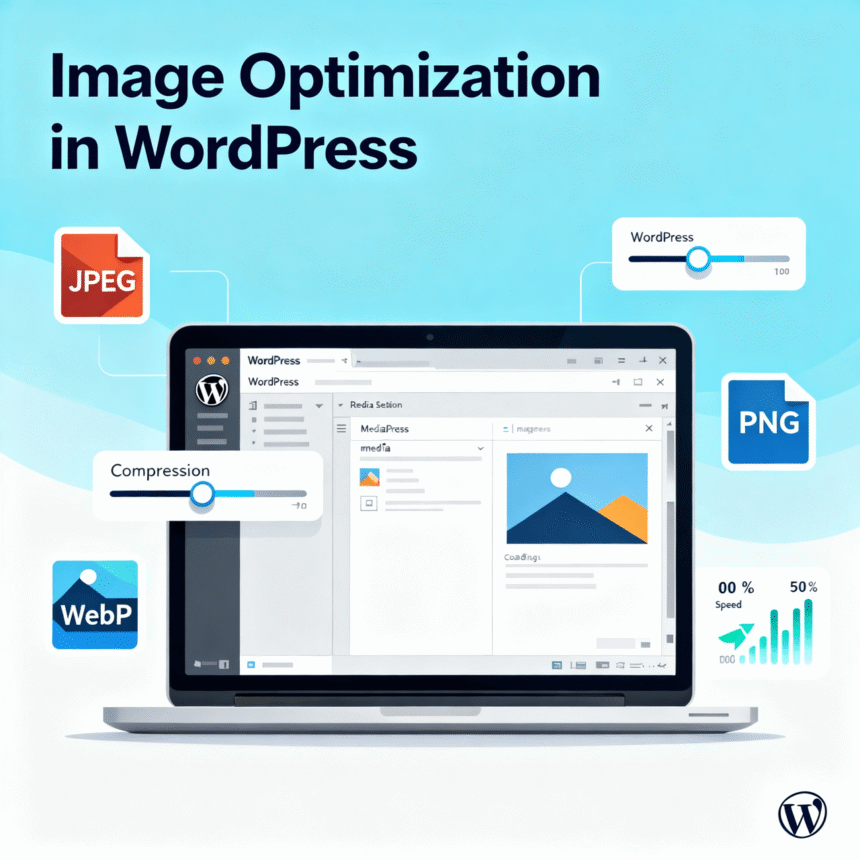

Images make a website look professional and engaging. However, if they are not handled correctly, they can become the biggest reason for a slow website. A slow site frustrates visitors and can hurt your rankings on search engines.
Image optimization is the process of reducing the file size of your images without losing quality. This ensures your pages load fast and your visitors stay happy. Here is everything you need to know about optimizing images for your WordPress site.
Why Image Optimization Matters
When a visitor clicks on your website, their browser has to download every file on that page. Images usually take up the most space. If you upload a large photo directly from a phone or a high-quality camera, it might be 5MB or larger.
Loading several of these images at once will make your site crawl. By optimizing them, you can reduce that file size by 80% or more, which makes your site feel snappy and responsive.
Choose the Right File Format
Before you even upload an image to WordPress, you need to pick the right format. The three most common types are:
- JPEG: This is best for photographs or images with lots of colors. It provides a great balance between quality and small file size.
- PNG: Use this for graphics, logos, or images that need a transparent background. PNGs are usually larger in size than JPEGs.
- WebP: This is a modern format created specifically for the web. It offers much smaller file sizes than JPEG and PNG while keeping the quality very high. Most modern browsers and WordPress versions support WebP.
Resize Images Before Uploading
One of the biggest mistakes beginners make is uploading an image that is much wider than the website’s display area. If your blog post area is only 800 pixels wide, there is no reason to upload a 4000 pixel wide image.
Use a simple tool like Canva, Photoshop, or even a basic photo viewer on your computer to resize the image to the maximum width you actually need.
Use Compression Plugins
WordPress has many amazing plugins that do the hard work for you. These plugins automatically shrink your images as you upload them.
- ShortPixel: A very popular choice that offers great compression and can convert your images to WebP automatically.
- Smush: This is an easy-to-use plugin that allows you to “bulk smush” all the images already on your site.
- Imagify: Created by the team behind WP Rocket, it offers a simple interface and excellent results.
Implement Lazy Loading
Lazy loading is a clever trick where the browser only loads images when the user scrolls down to them. If a visitor never reaches the bottom of your page, those images are never downloaded. This saves data and improves initial loading speed.
The good news is that modern WordPress versions have lazy loading turned on by default. However, some optimization plugins offer more advanced “lazy load” features that can speed things up even further.
Add Alt Text for SEO and Accessibility
Optimizing images isn’t just about speed; it’s also about helping search engines and people understand what is in the image.
- Alt Text: This is a short description of the image.
- Why it helps: Search engines use alt text to index images in search results. Also, screen readers for visually impaired users read this text aloud.
Always keep your alt text descriptive but simple. Instead of “IMG_1234.jpg,” use “Chocolate cake with strawberries on a white plate.”
Summary of Best Practices
To keep your WordPress site running fast, follow this simple checklist:
- Resize your images to the correct dimensions before uploading.
- Use JPEG for photos and WebP whenever possible.
- Install a compression plugin to handle the file size reduction.
- Always fill out the Alt Text field for every image.
By following these steps, you will provide a better experience for your visitors and keep your website running at peak performance.