
Updating WordPress is one of the most important things you can do for your website. It keeps your site fast, brings you new features, and most importantly, keeps hackers away.
However, many website owners are afraid to click that update button. They worry that a single click might break their design or make their site go offline. This guide will show you how to update WordPress safely so you can keep your site running perfectly without the stress.
Why You Should Never Skip Updates
Before we get into the steps, it is important to understand why we do this. WordPress is open source software. This means people all over the world are constantly looking for ways to improve it and ways to fix security holes.
If you don’t update, you are leaving your digital front door unlocked. Updates often include:
- Security Patches: Fixing vulnerabilities that hackers use to steal data.
- Bug Fixes: Solving small glitches that might make your site slow or jumpy.
- New Features: Giving you better tools to design your pages.
The Pre-Update Checklist
Never rush an update. Taking five minutes to prepare can save you five hours of fixing mistakes later.
1. Create a Full Backup
This is the most important step. If something goes wrong during the update, a backup is your “undo” button. You should back up your database and your files (like images and plugins). You can use plugins like UpdraftPlus or BlogVault to do this with one click.
2. Check Compatibility
Check your plugins and theme to see if they are ready for the new version of WordPress. Most developers update their plugins a few days before a big WordPress release. If a plugin hasn’t been updated in two years, it might be time to find a new one.
3. Disable Caching
If you use a caching plugin to make your site fast, turn it off temporarily. Caching can sometimes interfere with the update process, making it look like the update failed when it actually worked.
How to Update WordPress Safely (Step by Step)
There are a few ways to update, but the “Dashboard” method is the easiest for most people.
Step 1: Update Your Plugins
It is usually better to update your plugins before you update the main WordPress software. Go to Dashboard > Updates, select all your plugins, and click Update Plugins.
Step 2: Update Your Theme
Next, update your active theme. If you have made custom changes to your theme code without using a “Child Theme,” be careful. An update will overwrite your custom code. If you haven’t touched the code, go ahead and update.
Step 3: Update WordPress Core
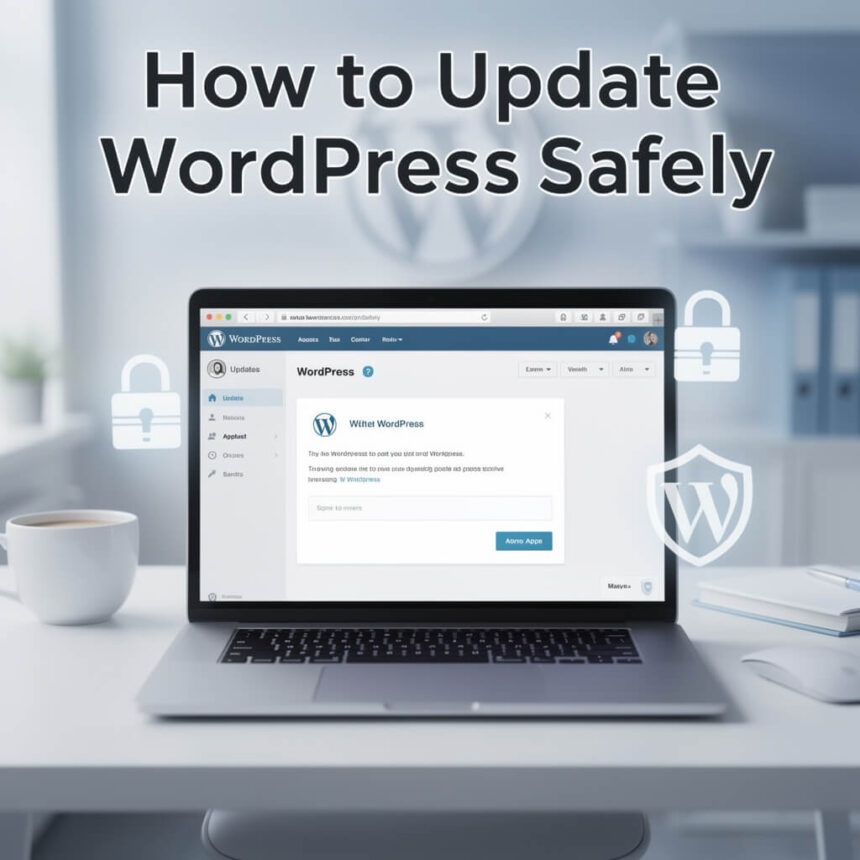
Now that your plugins and themes are ready, it is time for the main event. On the Updates page, you will see a button that says Update Now. Click it and wait. Do not close your browser tab until the process is finished.
Step 4: The Post-Update Review
Once the update is done, your site might show a “Maintenance Mode” message for a few seconds. This is normal. After it finishes:
- Clear your browser cache.
- Visit your homepage and a few subpages.
- Check your contact forms to make sure they still work.
- Re-enable your caching plugin.
What to Do If Something Breaks
Even with the best planning, things can sometimes go wrong. If you see a white screen or an error message, don’t panic.
Delete the .maintenance file: If your site stays stuck on “Briefly unavailable for scheduled maintenance,” use an FTP tool or your hosting file manager to find and delete a file named .maintenance in your main folder.
Deactivate Plugins: If the site is broken, a plugin is likely the cause. You can deactivate all plugins by renaming the plugins folder to plugins_old using your hosting file manager. This usually brings the site back to life so you can find the problem.
Restore Your Backup: If you can’t fix the error quickly, use the backup you made earlier to restore your site to exactly how it was before you started.
Final Thoughts
Updating your site doesn’t have to be scary. By following a simple routine of backing up, checking compatibility, and updating in the right order, you can keep your WordPress site healthy and secure.