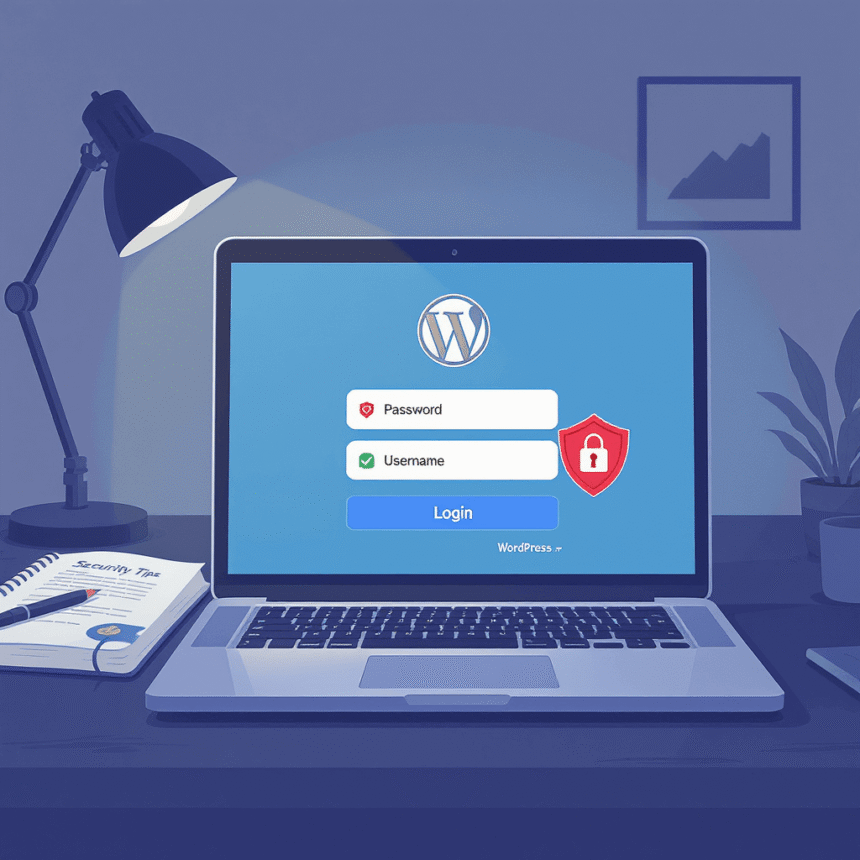

Your WordPress login page is the front door to your website. Just like your home, if you leave the front door unlocked or use a flimsy lock, you are inviting unwanted guests inside. Hackers often use automated bots to try thousands of password combinations every second to gain entry to your site.
Securing this specific page is one of the most effective ways to keep your content, user data, and hard work safe. Here is a simple guide on how to protect your WordPress login page.
1. Use a Strong Password and Two-Factor Authentication
The first line of defense is your password. Avoid using common words, your name, or “admin123.” A strong password should be a mix of uppercase letters, lowercase letters, numbers, and symbols.
2. Limit Login Attempts
By default, WordPress allows users to try entering a password as many times as they want. This is exactly what hackers want because it allows them to run “brute force attacks.”
You can install a plugin to limit login attempts. For example, if someone enters the wrong password five times, the site will lock their IP address for a set amount of time. This stops bots in their tracks.
3. Change Your Login URL
Every WordPress site uses the same default login address: yourdomain.com/wp-login.php. Since everyone knows this address, it is the first place hackers look.
You can use a plugin to change this to something unique, like yourdomain.com/my-secret-entry. If a hacker cannot find your login page, they cannot try to break in. This simple step hides the door from public view.
4. Hide Login Error Messages
When you enter a wrong password on WordPress, the site often tells you exactly what was wrong. It might say “The username is correct but the password is wrong.” This tells a hacker that they have half of the puzzle solved.
You can add a small piece of code or use a security plugin to show a generic error message like “Invalid login credentials.” This keeps the hacker guessing whether the username or the password was the mistake.
5. Use Captcha
We have all seen those boxes that ask us to click on pictures of traffic lights or type in blurry letters. This is called a Captcha. Adding a Captcha to your login page ensures that the visitor is a real human and not a computer program.
6. Keep Everything Updated
WordPress developers constantly release updates to fix security holes. If you are running an old version of WordPress, a theme, or a plugin, you are leaving a window open for hackers. Always click that update button as soon as it appears in your dashboard.
Summary of Actions
- Upgrade your password: Use a long, complex string.
- Install a security plugin: Many free plugins handle 2FA and login limits.
- Rename your login page: Move it away from the default address.
- Stay updated: Never ignore WordPress core updates.
By following these steps, you make your website a much harder target. Most hackers look for easy victims. When they see that your login page is well protected, they will likely give up and move on.