
Choosing a new look for your website is one of the most exciting parts of starting a blog. WordPress makes this easy by using themes. A theme is a collection of files that work together to create the design and layout of your site without changing the actual content.
If you are new to WordPress, you might feel a bit overwhelmed by the technical side of things. However, installing a theme is a straightforward process that anyone can do. This guide will walk you through the three best ways to get your new design up and running.
Method 1: Using the WordPress Theme Search
The easiest way to install a theme is through the official WordPress directory. This is built directly into your dashboard and features thousands of free themes that have been checked for safety.
- Log in to your WordPress dashboard. This is usually found at [suspicious link removed].
- Go to Appearance. Hover over the Appearance menu on the left side of your screen and click on Themes.
- Click Add New. You will see a button at the top of the page labeled Add New Theme.
- Search for a theme. You can look through the “Featured” or “Popular” tabs, or use the search bar if you have a specific name in mind. You can also use the Feature Filter to find themes based on colors, layouts, or specific functions like “E-commerce.”
- Install and activate. When you find a theme you like, hover over it and click the Install button. Once the installation is finished, that button will change to say Activate. Click it to make the theme live on your site.
Method 2: Uploading a Theme from Your Computer
Sometimes you might purchase a premium theme from a marketplace or a developer. In this case, you will receive a file on your computer, usually in a .zip format. You cannot install this using the search bar. Instead, you need to upload it.
- Download the .zip file. Make sure you have the theme file ready on your computer. Do not unzip it.
- Go to Appearance, then Themes. Just like in the first method, navigate to the Themes section and click Add New Theme.
- Click Upload Theme. Instead of searching, click the Upload Theme button at the very top of the page.
- Choose your file. A box will appear asking you to select a file. Click Choose File, find your theme .zip file, and click Install Now.
- Activate. WordPress will upload the file and extract it for you. Once it is done, click the link that says Activate.
Method 3: Installing Manually via FTP
This method is more advanced and is usually only necessary if your hosting provider has file size limits that prevent you from uploading via the dashboard. To do this, you will need an FTP client like FileZilla and your FTP login credentials.
- Unzip the theme file. Unlike the upload method, you need to unzip the folder on your computer first.
- Connect to your server. Open your FTP client and log in to your website’s server.
- Find the themes folder. Navigate to the path /wp-content/themes/.
- Upload the folder. Drag the unzipped theme folder from your computer into the themes folder on your server.
- Activate via Dashboard. Once the transfer is complete, go back to your WordPress dashboard. Navigate to Appearance and then Themes. You should see your new theme listed there. Simply click Activate.
Important Steps After Installation
Once your theme is active, your website will look different immediately. However, there are a few things you should check to ensure everything is working perfectly.
- Check your menus. Sometimes themes have different locations for menus. You may need to go to Appearance and then Menus to reassign your navigation links.
- Update your widgets. Look at Appearance and then Widgets to make sure your sidebars and footers are displaying the right information.
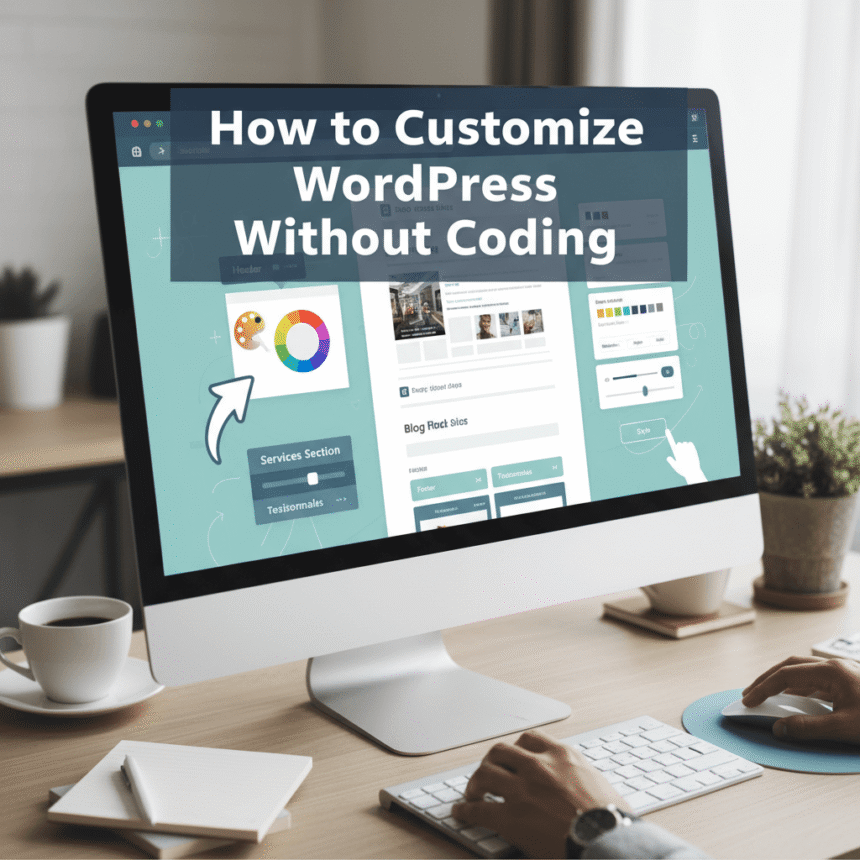
- Customize the settings. Most themes have a Customize button under the Appearance menu. This allows you to change colors, upload a logo, and adjust the layout to fit your brand.
Installing a WordPress theme is the first step toward building a professional online presence. Whether you choose a free option from the directory or a custom premium design, the process is quick and sets the foundation for your content.