
Having a fast website is no longer just a luxury. It is a necessity. If your pages take more than a few seconds to load, visitors will likely leave before they even see your content. A quick site improves user experience and helps your site rank better in search results.
Here is a simple, step-by-step guide to making your WordPress site fly.
1. Choose a High-Quality Hosting Provider
Your hosting is the foundation of your website. If your “house” is built on a weak foundation, no amount of decoration will make it sturdy. Many beginners start with cheap shared hosting. While this is budget-friendly, it often leads to slow speeds because you are sharing resources with hundreds of other sites.
Consider moving to a managed WordPress host. These providers optimize their servers specifically for WordPress, which can significantly cut down your loading times.
2. Use a Lightweight Theme
It is tempting to pick a theme that has every feature imaginable. However, themes packed with complex layouts, flashy animations, and dozens of built-in tools are usually heavy. They contain a lot of code that your browser has to load every time someone visits.
Stick to lightweight, minimalist themes. You can always add specific features later using plugins. Simple code equals faster loading.
3. Optimize Your Images
Large images are the most common reason for a slow WordPress site. High-resolution photos can be several megabytes in size, which is far too heavy for a web page.
- Resize: Do not upload a 4000-pixel wide photo if your blog area is only 800 pixels wide.
- Compress: Use tools or plugins to reduce the file size without losing quality.
- Use WebP: This is a modern image format that is much smaller than traditional JPEG or PNG files.
4. Install a Caching Plugin
Normally, when someone visits your site, WordPress has to “build” the page by fetching data from a database and running code. This takes time.
Caching creates a “static” version of your page. Instead of building the page every single time, your server simply shows the pre-made version to the visitor. This makes the process nearly instant. Popular plugins like WP Rocket or W3 Total Cache handle this beautifully.
5. Clean Up Your Plugins
Every plugin you add adds a bit of weight to your site. Some plugins are poorly coded and can slow your site down significantly even if they aren’t “doing” much.
Go through your list of plugins. If you aren’t using one, delete it. If you have a plugin for something small that you can do manually, consider removing it. Quality is always better than quantity.
6. Use a Content Delivery Network (CDN)
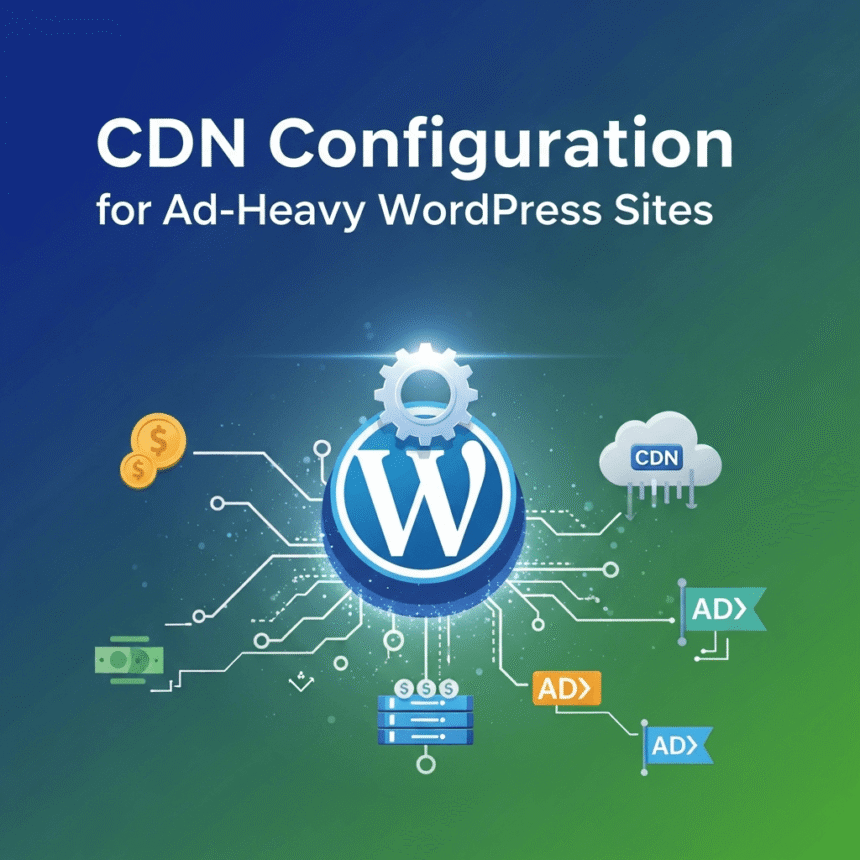
A CDN is a network of servers located all around the world. When you use a CDN, a copy of your website’s static files (like images and CSS) is stored on these global servers.
If a visitor from London opens your site, the CDN serves the files from a server in London rather than one in New York. Reducing the physical distance the data has to travel makes your site feel much faster to international users.
7. Keep WordPress Updated
The developers behind WordPress, your themes, and your plugins are constantly releasing updates. These updates often include performance improvements and more efficient code. Keeping everything up to date ensures you are using the fastest version of the software available.
8. Optimize Your Database
Over time, your WordPress database gets cluttered with unnecessary information. This includes things like old post revisions, trashed comments, and expired data from plugins.
Think of it like a filing cabinet. If it’s stuffed with old, useless papers, finding the one document you need takes longer. Use a plugin to periodically “clean” your database to keep things running smoothly.