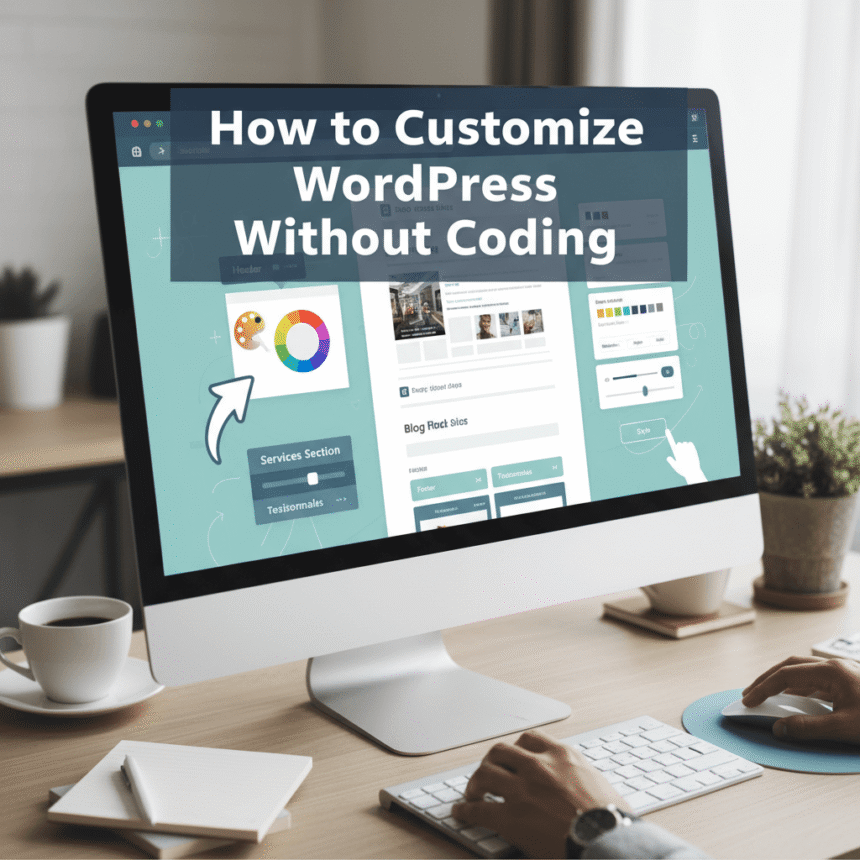

In the past, making a website look exactly how you wanted required learning complex languages like HTML or CSS. If you didn’t know how to code, you often had to settle for a basic design or hire an expensive developer.
The good news is that WordPress has changed. In 2026, you can build a professional, beautiful, and unique website using simple visual tools. You don’t need to write a single line of code.
Here is a step-by-step guide on how to take control of your site’s design using the latest “no-code” methods.
1. Start with a Flexible Theme
Your theme is the foundation of your website. To customize without coding, you need a theme that is built for flexibility. Some themes are “locked,” meaning you can’t change much. Instead, look for “Block Themes” or highly versatile classic themes.
Popular choices include:
- Astra: Known for being very fast and offering hundreds of “Starter Templates” that you can import with one click.
- Kadence: Offers a very easy drag-and-drop header and footer builder.
- GeneratePress: A lightweight option that gives you total control over layout and colors.
2. Use the WordPress Site Editor
If you are using a modern Block Theme, you have access to the Site Editor. This is a powerful tool found under Appearance > Editor.
The Site Editor allows you to click on any part of your website—whether it is the logo, the menu, or the footer—and change it instantly. You can:
- Change Global Styles: Pick a color palette or a font set that applies to your entire site at once.
- Edit Templates: Decide exactly how your blog posts or your 404 error page should look.
- Use Block Patterns: These are pre-designed sections (like a “Contact Us” area or a “Pricing Table”) that you can simply drop into your page and fill with your own text.
3. Drag-and-Drop with Page Builders
If the standard WordPress tools feel a bit limited, “Page Builders” are the ultimate solution for non-coders. These are plugins that turn your website into a visual canvas.
The most popular page builders are:
- Elementor: This is a fan favorite because it has a huge library of widgets. You just grab an icon, a heading, or a video player from the menu and slide it onto your page.
- SeedProd: Originally for landing pages, it is now a full website builder that is very beginner-friendly.
- Divi: A complete design ecosystem that lets you edit your site on the “front end,” meaning you see exactly what your visitors see while you make changes.
4. Personalize with the Customizer
For those using classic themes, the WordPress Customizer (found under Appearance > Customize) is your best friend. It provides a side menu where you can toggle settings and see the results in a live preview window.
Common things you can change here include:
- Site Identity: Upload your logo and site icon (favicon).
- Typography: Change the size and style of your headings and body text.
- Menus: Create and arrange your navigation links without leaving the preview screen.
5. Add Features Using Plugins
Sometimes “customizing” isn’t just about looks; it is about what your site can do. Instead of coding a contact form or a social media feed, you can use plugins.
- WPForms: Create contact forms by dragging fields into place.
- Envira Gallery: Create beautiful photo displays without knowing how to resize images with code.
- Spectra: Adds extra “blocks” to the standard WordPress editor, giving you more design options for free.
Summary of Tips for Beginners
- Always Backup First: Before making big design changes, use a plugin like UpdraftPlus to save a copy of your site.
- Mobile Preview: Most editors have a small “mobile” icon. Click it to make sure your site looks good on phones, not just computers.
- Keep it Simple: Just because you can add 50 different colors and animations doesn’t mean you should. A clean design usually works best.
Customizing WordPress today is more like playing with building blocks than writing a science paper. By choosing the right theme and using visual editors, you can create a site that looks like it cost thousands of dollars to develop.