
Building a website takes a lot of time and effort. You spend hours writing posts, choosing the perfect theme, and making sure everything looks just right. But what would happen if your site suddenly crashed or got hacked? Without a backup, you could lose everything in a matter of seconds.
Backing up your WordPress website is like having an insurance policy. It ensures that if something goes wrong, you can restore your site to exactly how it was before the trouble started. Here is a simple guide on how to keep your hard work safe.
Why You Need a Backup
Many things can go wrong with a website. Sometimes a new plugin might break your layout. Other times, a simple human error could delete an important page. In worse cases, hackers might try to gain access to your site.
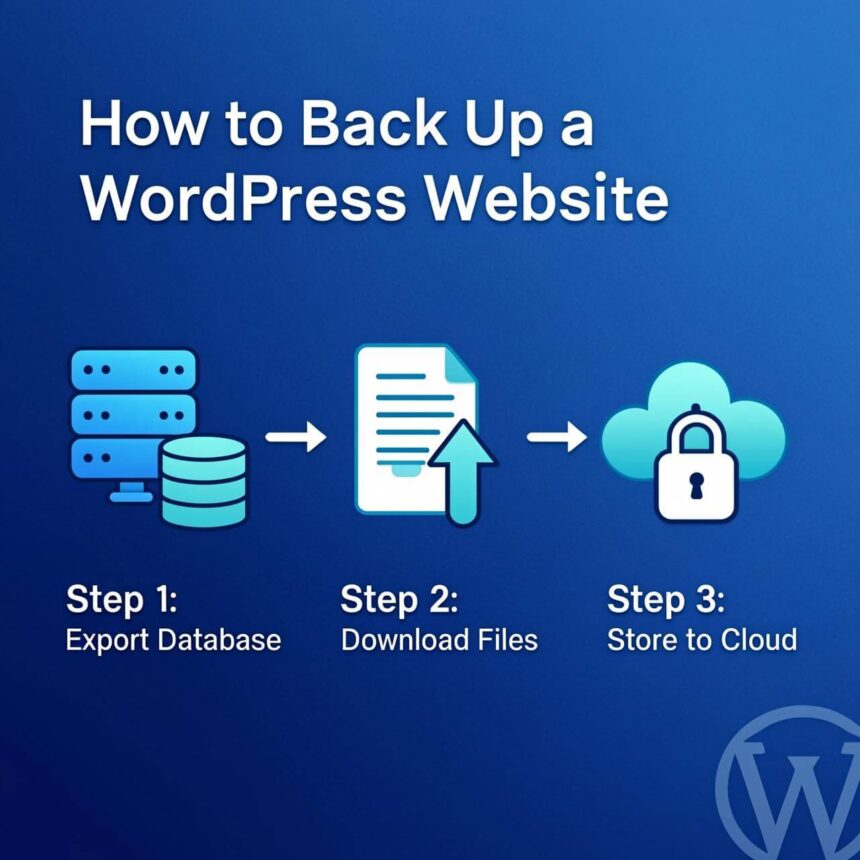
A backup is a copy of all your website files and your database. If you have this copy saved in a safe place, you can fix any problem by simply “rolling back” to the saved version.
The Two Parts of a WordPress Backup
To fully back up WordPress, you need to save two specific things:
- The Database: This contains your posts, comments, and settings.
- The Files: This includes your themes, plugins, and all the images or videos you have uploaded.
Method 1: Using a Plugin (The Easiest Way)
For most people, using a plugin is the best way to handle backups. Plugins can do all the work for you automatically.
Step 1: Choose a Plugin
There are many great options available. Some of the most popular ones include UpdraftPlus, BackWPup, or Duplicator. For this example, we will talk about UpdraftPlus because it is very user friendly.
Step 2: Install and Activate
Go to your WordPress dashboard. Click on Plugins, then Add New. Search for “UpdraftPlus,” click install, and then click activate.
Step 3: Set Up Your Backup
Go to Settings and then UpdraftPlus Backups. You will see a big “Backup Now” button. You can click this to start a backup immediately.
Step 4: Choose a Remote Location
It is a bad idea to keep your backups on the same server as your website. If the server crashes, you lose both your site and your backup. Under the Settings tab in the plugin, choose a place like Google Drive, Dropbox, or Amazon S3 to store your files.
Method 2: Manual Backup via Your Hosting Account
If you do not want to use a plugin, you can do it manually through your hosting provider. Most hosts use a tool called cPanel.
Backing Up Files
- Log in to your hosting account and find the File Manager.
- Go to the folder where your website is located (usually called
public_html). - Select all the files and folders, right-click, and choose Compress.
- Download that compressed zip file to your computer.
Backing Up the Database
- In your cPanel, find the tool called phpMyAdmin.
- Select your website’s database from the list on the left.
- Click the Export tab at the top.
- Choose the “Quick” method and click Go. This will download an
.sqlfile to your computer.
How Often Should You Backup?
The answer depends on how often you update your site.
- If you post every day, you should set your backups to happen daily.
- If you only update once a week, a weekly backup is usually enough.
Most plugins allow you to set a schedule so the backup happens automatically while you sleep.
Final Tips for Safety
Always check your backups. Once in a while, make sure the files are actually being saved in your Google Drive or Dropbox. It is also a good idea to keep more than one copy. Having one backup in the cloud and one on your physical computer is a very safe strategy.
Taking a few minutes to set up a backup system today can save you weeks of stress in the future. Your website is an investment, so make sure you protect it.