

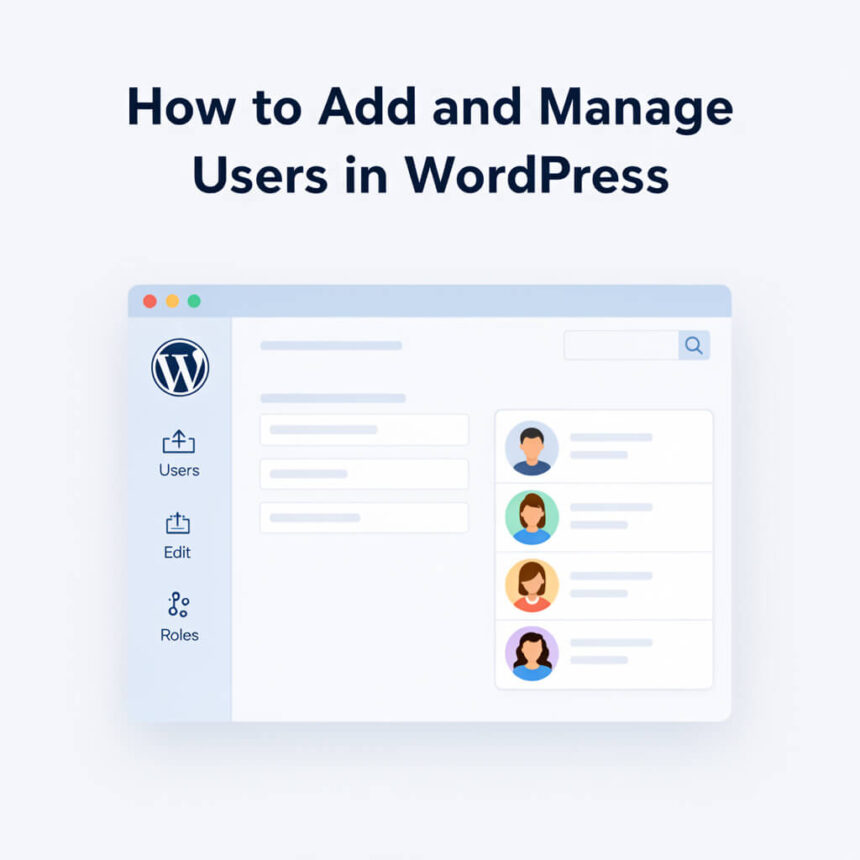

Running a WordPress website often becomes a team effort. Whether you are hiring a writer, working with a developer, or allowing readers to register for an account, you need to know how to handle user access. Managing users correctly keeps your site organized and, more importantly, keeps it secure.
In this guide, we will walk through the simple steps to add new people to your site and how to manage their permissions.
Why User Roles Matter
Before you start adding names, you should understand that not every user needs the same level of power. WordPress uses a system of Roles to control what a person can and cannot do.
- Administrator: This is the boss. They have access to every single setting, including themes, plugins, and user management.
- Editor: They can view, edit, publish, and delete any posts or pages, even those written by other people.
- Author: They can write, upload images for, and publish their own posts. They cannot change other people’s work.
- Contributor: They can write and edit their own posts, but they cannot publish them. An Administrator or Editor must review and hit the publish button for them.
- Subscriber: This is the most basic level. They can only manage their own profile and read content.
How to Add a New User
Adding someone new takes less than two minutes. Follow these steps:
- Log in to your WordPress dashboard.
- On the left side menu, hover over Users and click on Add New.
- Fill in the Username: This is what they will use to log in. It cannot be changed later, so choose wisely.
- Enter the Email: Use a valid email address so they can receive notifications and password reset links.
- First and Last Name: These are optional but helpful for staying organized.
- Website: This is also optional and usually left blank.
- Password: WordPress will generate a strong password for you. You can click “Show Password” to copy it, though the system can email it to the user automatically.
- Send User Notification: Check the box that says “Send the new user an email about their account.”
- Select a Role: Choose the appropriate role from the dropdown menu based on the descriptions we discussed above.
- Click Add New User.
Managing and Editing Existing Users
Sometimes you need to change a person’s information or upgrade their role because they have taken on more responsibility.
To do this, go to the Users menu and select All Users. You will see a list of everyone registered on your site. When you hover over a specific name, you will see the Edit option.
Inside the Edit screen, you can change their display name, update their email, or reset their password. This is also where you can change their Role if you want to promote a Contributor to an Author.
Removing a User Safely
If a team member leaves or a guest writer is finished with their work, you might want to remove their account.
- Go to Users and then All Users.
- Hover over the user you want to remove and click Delete.
- Crucial Step: WordPress will ask what you want to do with the content that person wrote.
- Delete all content: This wipes their posts off the site.
- Attribute all content to: This allows you to transfer their posts to yourself or another active user. Usually, you should transfer the content so you don’t end up with broken links or missing pages.
- Click Confirm Deletion.
Best Practices for User Management
To keep your site running smoothly, keep these tips in mind:
- The Principle of Least Privilege: Only give people the minimum amount of access they need to do their job. If someone only needs to write a post, make them a Contributor or Author, not an Administrator.
- Use Unique Usernames: Avoid using “admin” as a username. It is the first thing hackers guess when trying to break into a site.
- Regular Audits: Every few months, check your user list. If you see accounts for people who no longer work with you, delete them to reduce security risks.
Managing users is a core skill for any WordPress site owner. By following these steps, you can grow your team while keeping your digital home safe and organized.



✅