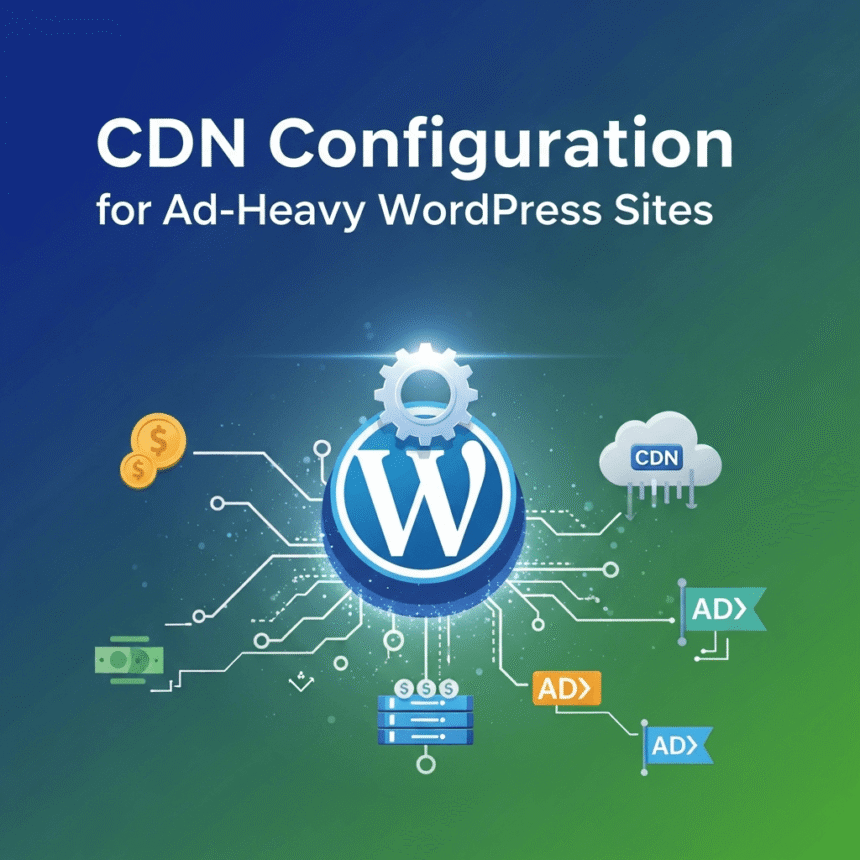

Running a WordPress site that serves a high volume of ads can be a double-edged sword. While the traffic is great, the technical load can slow your site to a crawl. When a page takes too long to load, visitors leave before your content even appears.
A Content Delivery Network (CDN) is the best way to fix this. It stores copies of your site on servers all over the world, so your visitors download data from the server closest to them. Here is how to configure it properly for a site that carries a heavy script load.
Why Standard Settings Often Fail
Most people turn on a CDN and leave it at the default settings. For a simple blog, that is fine. But for a site with many scripts and media files, default settings can cause “render-blocking” issues. This is when the browser stops loading the page because it is waiting for a script to finish.
1. Optimize Your Asset Delivery
The first step in your configuration is deciding what the CDN should handle. You want to offload the “heavy lifting” while keeping the core site logic fast.
Cache Static Assets: Ensure your CSS, JavaScript, and image files are cached at the “Edge.” This reduces the number of requests hitting your actual web host.
Minification: Most modern CDNs offer a toggle to minify code. Enable this for HTML, CSS, and JS. It removes unnecessary characters to make files smaller without changing how they work.
2. Handle Script Loading Orders
Ad-heavy sites often suffer because the ad scripts compete with the content scripts. You can use your CDN and WordPress settings together to manage this.
Asynchronous Loading: Set your CDN to prioritize the delivery of your core CSS so the page looks right immediately.
Rocket Loader or Similar Tools: If you use a provider like Cloudflare, tools like Rocket Loader can bundle JavaScript and load it only after the main content has appeared. This prevents the “blank screen” effect while ads are fetching data.
3. Implement Page Rules
Not every part of your WordPress site needs the same level of caching. You should set up specific rules in your CDN dashboard.
Bypass Cache for Admin: Always set a rule to bypass the CDN for /wp-admin/ and wp-login.php. You do not want the CDN to cache your private dashboard.
Edge Cache TTL: For your images and theme files, set a long “Time to Live” (TTL). Since these files rarely change, you want them to stay on the CDN servers as long as possible.
4. Image Optimization at the Edge
Images are usually the largest files on an ad-heavy site. Instead of using a heavy WordPress plugin that slows down your database, let your CDN handle the resizing. Many premium CDNs can automatically convert your images to WebP format, which is much lighter than JPEG or PNG, before they reach the visitor’s screen.
5. Proper Header Configuration
Your server needs to tell the CDN how to behave. Ensure your WordPress site is sending the correct “Cache-Control” headers.
If your headers are set to “private” or “no-cache,” the CDN will simply pass the request through to your server every time, defeating the purpose of having a CDN in the first place. Set your headers to “public” with a defined max-age for your static files.
Summary Checklist
Enable Brotli or Gzip compression.
Set a long cache duration for images and CSS.
Use “Lazy Loading” for images so they only load as the user scrolls.
Exclude the WordPress dashboard from all caching rules.
By following these steps, you can keep your site fast and responsive, ensuring that your visitors stay long enough to see your content and interact with your site.