
If you manage more than one WordPress website, you know how time-consuming it can be to log in and out of different dashboards. Updating plugins, changing themes, and managing users across five or ten separate sites can feel like a full-time job.
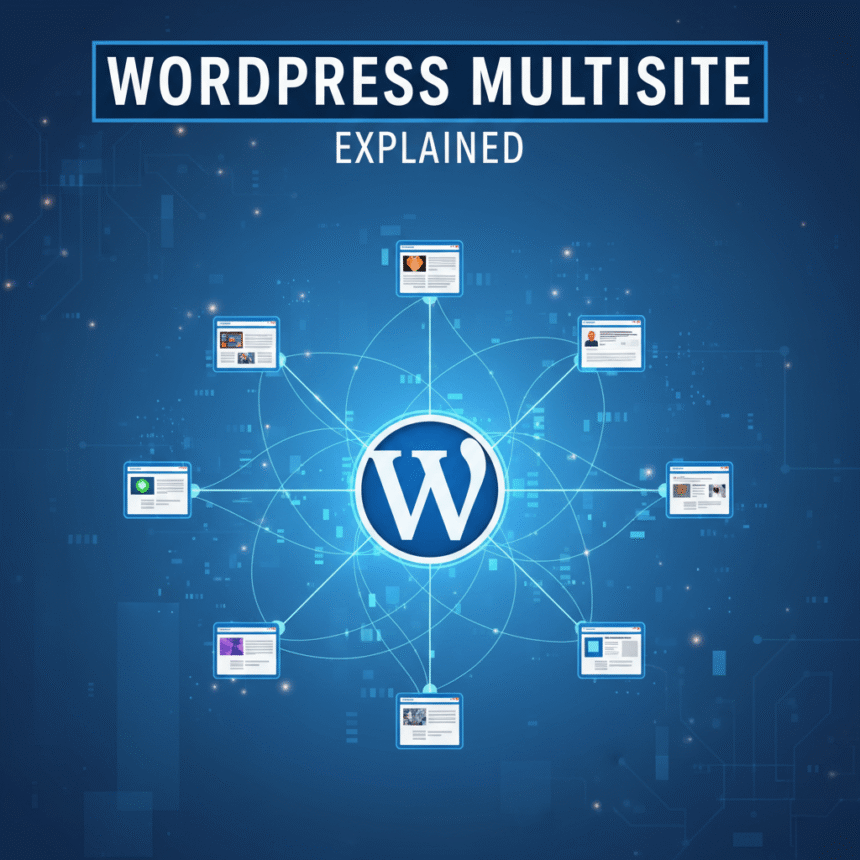
This is where WordPress Multisite comes in. It is a powerful feature that allows you to create a “network” of websites all running under a single WordPress installation.
What is WordPress Multisite?
Think of a standard WordPress setup like a single-family home. It has its own front door, its own kitchen, and its own roof.
WordPress Multisite is like an apartment building. There is one main structure (the WordPress core files), but inside that building, there are many individual apartments (your websites). Each apartment has its own space, but they all share the same foundation and plumbing.
In technical terms, it allows you to be the “Super Admin” of a network. From one dashboard, you can control dozens, hundreds, or even thousands of individual sites.
How Does It Work?
When you enable Multisite, your WordPress dashboard changes slightly. You get a new area called the Network Admin.
- The Network Admin: This is where you manage the entire system. You install themes and plugins here. You also create new sites and manage users across the whole network.
- The Site Admin: Each individual site in your network still has its own dashboard. However, the site owners cannot install new plugins or themes. They can only activate the ones you, the Super Admin, have made available.
Domain Structures
You can set up your network in two main ways:
- Sub-domains: https://www.google.com/search?q=site1.yourdomain.com
- Sub-directories: yourdomain.com/site1
The Pros of Using Multisite
Using a network setup offers several benefits if you are managing a specific type of project.
- One-Click Updates: When a new version of WordPress comes out, you update it once, and every site in the network is updated instantly. The same goes for plugins and themes.
- Shared Users: You can give a user access to multiple sites without them needing separate passwords for each one.
- Server Efficiency: Since all sites share the same core files, it often uses fewer server resources than having ten separate WordPress installations.
- Centralized Control: If you want to change the branding for all your sites at once, you can do it from the master theme folder.
The Cons and Risks
While it sounds perfect, Multisite isn’t for everyone. There are some significant trade-offs to consider.
- Shared Resources: If one site experiences a massive spike in traffic that crashes the server, every site in your network goes down.
- Security Risks: If a hacker gains access to the main network, they have access to every single site in your “apartment building.”
- Plugin Compatibility: Not every WordPress plugin is designed to work with Multisite. Some might behave strangely or not work at all.
- Individual Site Limits: It is difficult to give one site a completely unique plugin that the other sites don’t have access to.
Who Should Use It?
WordPress Multisite is a specialized tool. It is best suited for:
- Schools and Universities: Each department or teacher can have their own blog under the main university domain.
- Internal Business Networks: Large companies can give each branch or department their own internal site.
- Real Estate Agencies: Each agent can have a personal site for their listings while the main office maintains control.
- Online Communities: If you want to offer a service where users can create their own blogs (similar to WordPress.com), this is the technology you use.
How to Get Started
Multisite is actually built into every WordPress installation, but it is turned off by default. To turn it on, you have to edit a specific file on your server called wp-config.php.
You add a single line of code that tells WordPress to “Allow Multisite.” Once you do that, a new menu appears in your dashboard called Network Setup. This tool guides you through the process of configuring your network.
Conclusion
WordPress Multisite is a fantastic way to scale your web presence without multiplying your workload. It simplifies management and keeps your digital ecosystem organized.
However, because of the shared security and resource risks, you should only use it if the sites are related in some way. If you are building websites for completely different clients who have nothing to do with each other, it is usually safer to keep them as separate installations.