
Running a website is a lot like owning a car. If you never change the oil or check the tires, eventually it will stop working. Your WordPress site needs the same kind of care. If you ignore it, your site might become slow, break down, or even get hacked.
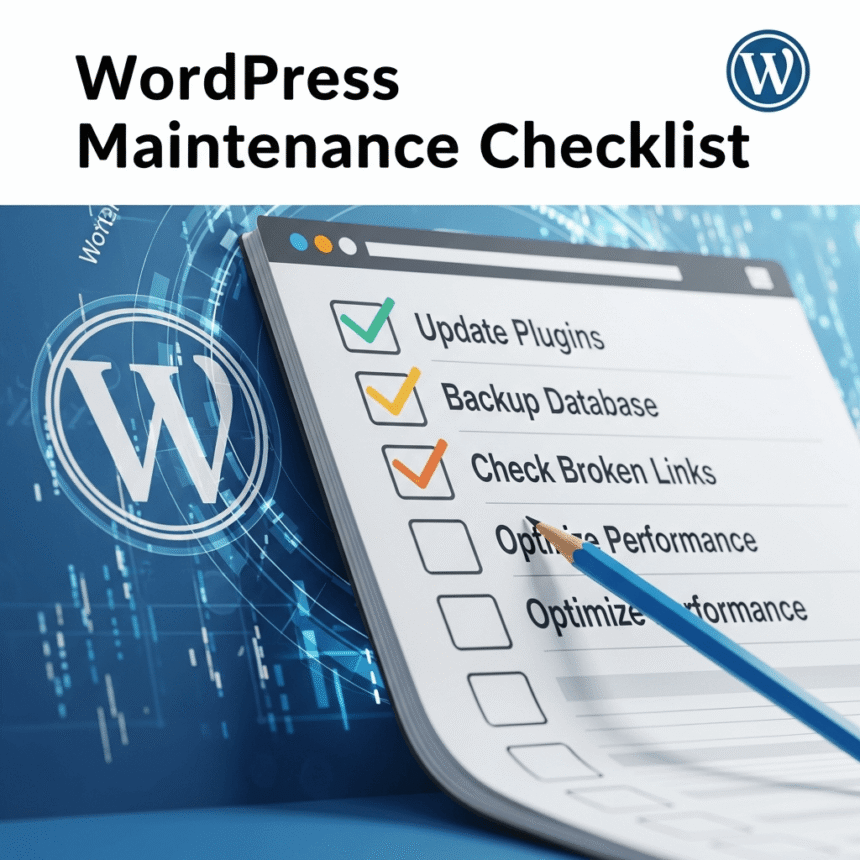
Use this checklist to keep your website running smoothly and safely.
1. Back Up Your Website Regularly
A backup is your safety net. If something goes wrong, a backup allows you to restore your site to exactly how it was before the problem started.
- How often? If you post every day, back up daily. If you post once a week, a weekly backup is fine.
- What to back up? You need your database and your files (images, themes, and plugins).
- Where to store it? Never keep your backup only on your web server. Use cloud services like Google Drive or Dropbox.
2. Update the Core Software
WordPress releases updates often. These updates fix bugs and, more importantly, close security holes. When you see a notification in your dashboard that a new version of WordPress is available, click that update button. Just make sure you have a fresh backup first.
3. Keep Your Themes and Plugins Current
Plugins and themes are the most common ways for hackers to enter a site. Developers release updates to keep their code compatible with the latest version of WordPress.
- Delete any plugins or themes you are not using.
- Update the ones you do use as soon as an update is available.
- Avoid using “nulled” or pirated premium plugins, as they often contain hidden viruses.
4. Check Your Website Speed
Nobody likes a slow website. If your pages take more than three seconds to load, visitors will leave. Use free tools like Google PageSpeed Insights to see how fast your site is.
To improve speed:
- Optimize Images: Large images are the main reason for slow sites. Resize them before uploading.
- Use Caching: Use a plugin to serve static versions of your pages to visitors.
5. Delete Spam Comments
WordPress is a magnet for spam comments. While most of these are caught by filters, some might still sit in your “Pending” or “Spam” folders. These comments take up space in your database. Take a minute each week to empty the spam folder and delete any comments that look like advertisements.
6. Test Your Forms
Imagine a potential customer tries to contact you, but your contact form is broken. You would never even know you missed a lead. Every month, go to your “Contact” page and send a test message to yourself. Make sure the email actually arrives in your inbox.
7. Check for Broken Links
A broken link is a link that leads to a “404 Not Found” error page. This is frustrating for users and bad for your search engine rankings. You can use a “Broken Link Checker” tool to find these links and fix them or remove them.
8. Review Your Security Logs
Security is a constant job. If you use a security plugin, check the logs to see if there have been any unusual login attempts. If you see many failed attempts from the same IP address, you should block that IP address. Also, ensure you are using strong, unique passwords for your admin account.
9. Optimize Your Database
Over time, your WordPress database gets cluttered with old post revisions, deleted comments, and temporary data. Using an optimization plugin can “clean” your database, making it smaller and more efficient. This helps your site load faster.
10. Scan for Malware
Even if your site looks fine, there could be hidden code running in the background. Use a security scanner once a month to ensure your files haven’t been changed by an intruder.
By following this checklist, you protect your hard work and provide a better experience for your visitors. A well-maintained site is faster, safer, and more successful.