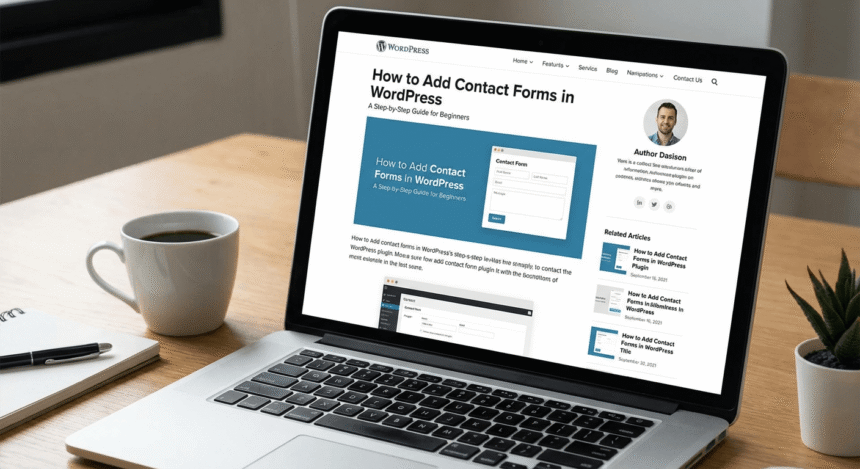

Every website needs a way for visitors to get in touch. Whether you want to answer questions, receive feedback, or land new clients, a contact form is the most professional way to do it.
While you could simply list your email address, doing so often leads to a flooded inbox full of spam. A contact form keeps your site secure and organizes the information you receive. If you are using WordPress, adding one is surprisingly easy.
Here is a simple guide to getting your first contact form up and running.
Step 1: Choose a Contact Form Plugin
WordPress does not come with a built-in contact form creator. To add one, you need to install a “plugin.” Think of a plugin like an app for your website that adds new features.
There are many great options available for free. Some of the most popular include:
- WPForms: Very beginner-friendly with a drag-and-drop builder.
- Contact Form 7: An older, classic option that is very flexible but slightly harder to design.
- Formidable Forms: Great if you need to collect complex data or surveys.
For this guide, we recommend starting with a tool like WPForms Lite because it is designed for people who aren’t tech experts.
Step 2: Install and Activate the Plugin
- Log in to your WordPress dashboard.
- Look at the menu on the left and click Plugins, then select Add New.
- In the search bar at the top right, type the name of the plugin you chose.
- Click the Install Now button next to the plugin.
- Once the installation finishes, the button will change to say Activate. Click it.
Step 3: Create Your First Form
Once the plugin is active, you will see a new menu item in your dashboard. If you chose WPForms, it will simply say WPForms.
- Click on Add New within the plugin menu.
- Give your form a name, such as “Contact Us.”
- Most plugins offer templates. Select the Simple Contact Form template to save time. This usually includes fields for Name, Email, and Message.
- If you want to add more fields, like a phone number or a dropdown menu, you can usually drag them from the left side and drop them onto your form.
- Click Save when you are finished.
Step 4: Configure Your Notifications
You want to make sure that when someone fills out the form, you actually get an email about it.
Go to the Settings tab inside the form builder and look for Notifications. By default, most plugins are set to send emails to the “Admin Email” associated with your WordPress account. You can change this to any email address you prefer.
You should also check the Confirmations tab. This allows you to write a nice thank-you message that the visitor sees after they hit the submit button.
Step 5: Add the Form to Your Website
Now that your form is created, you need to put it on a page.
- Go to Pages and click Add New.
- Title the page “Contact” or “Get in Touch.”
- Click the (+) icon to add a new block.
- Search for the name of your plugin (for example, “WPForms”).
- Select your form from the dropdown menu that appears.
- Click Publish.
Final Tips for Success
Before you walk away, always test your form. Open your website in a different browser or on your phone and send a test message. Check your email to ensure it arrived. If you don’t see it, check your spam folder.
Keep your forms short. The more questions you ask, the less likely people are to finish filling them out. Stick to the essentials so it is easy for your visitors to reach out.