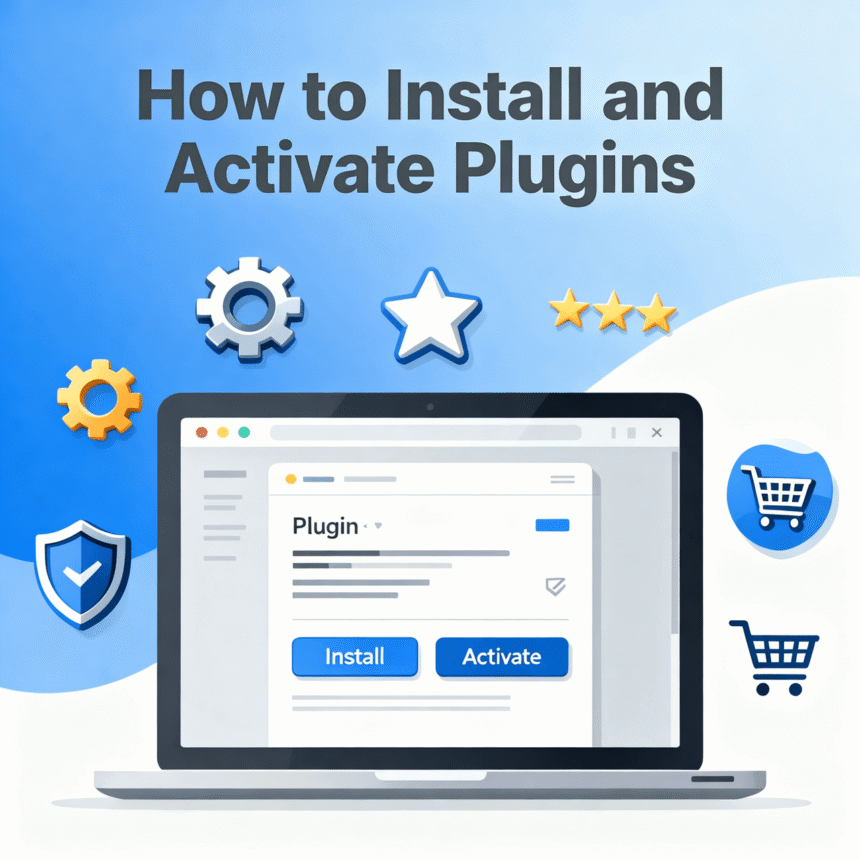

Adding new features to your website is one of the most exciting parts of being a site owner. If you are using a platform like WordPress, you do this through plugins. Think of a plugin like an app for your phone. Just as you download an app to add a flashlight or a game to your smartphone, you install a plugin to add things like contact forms, social media buttons, or security tools to your website.
In this guide, we will walk you through the simple steps to get your first plugin up and running.
What You Need to Know Before Starting
Before you click any buttons, it is important to remember that plugins are pieces of code. To keep your site running fast and staying safe, you should only install plugins that are well-rated and updated recently.
Method 1: Using the Built-in Search
This is the easiest way to add free plugins. Most people find everything they need using this method.
- Log in to your dashboard: Go to the back end of your website.
- Find the Plugins menu: Look at the left side of your screen. Click on Plugins and then select Add New.
- Search for your plugin: In the top right corner, you will see a search bar. Type the name of the feature you want, such as “Contact Form” or “Gallery.”
- Install: Once you find the right one, click the button that says Install Now. Your site will take a few seconds to download the files.
- Activate: The button will change to say Activate. Click it again. Your plugin is now live and ready to use.
Method 2: Uploading a Plugin
Sometimes you might buy a premium plugin from a developer or download one as a .zip file. In this case, you cannot find it in the search bar.
- Download the file: Make sure you have the plugin saved on your computer. It must stay in the .zip format. Do not unzip it.
- Go to Add New: Just like before, go to Plugins and then Add New.
- Upload Plugin: At the very top of the page, click the button that says Upload Plugin.
- Choose File: A small box will appear. Click Choose File and select the .zip file from your computer.
- Install and Activate: Click Install Now. Once it finishes, click the Activate Plugin button.
How to Manage Your Plugins
After you activate a plugin, you might need to change its settings. You can usually find the settings in one of three places:
- In the Plugins List: Go to Plugins and then Installed Plugins. Look for a “Settings” link under the plugin name.
- On the Sidebar: Many plugins create their own menu item on the left-hand side of your dashboard.
- Inside Settings: Some smaller plugins hide their options inside the main Settings or Tools tab.
Staying Safe with Plugins
While plugins are helpful, having too many can slow down your website. If you find that you are no longer using a specific tool, it is a good idea to deactivate it.
To do this, go to your Installed Plugins list and click Deactivate. If you are sure you won’t need it again, click Delete to remove the files entirely. This keeps your website clean and fast for your visitors.
Installing a plugin is a simple way to take control of your website. Whether you want to start a newsletter or protect your site from hackers, there is almost certainly a plugin ready to help you do it.